PDF to RTF Converter
Our PDF to RTF converter rebuilds the text of your PDF as a Rich Text Format document you can edit almost anywhere. Everything runs on your own device, so the file never leaves it.
Converted on this device. Your files are never uploaded.
How it works
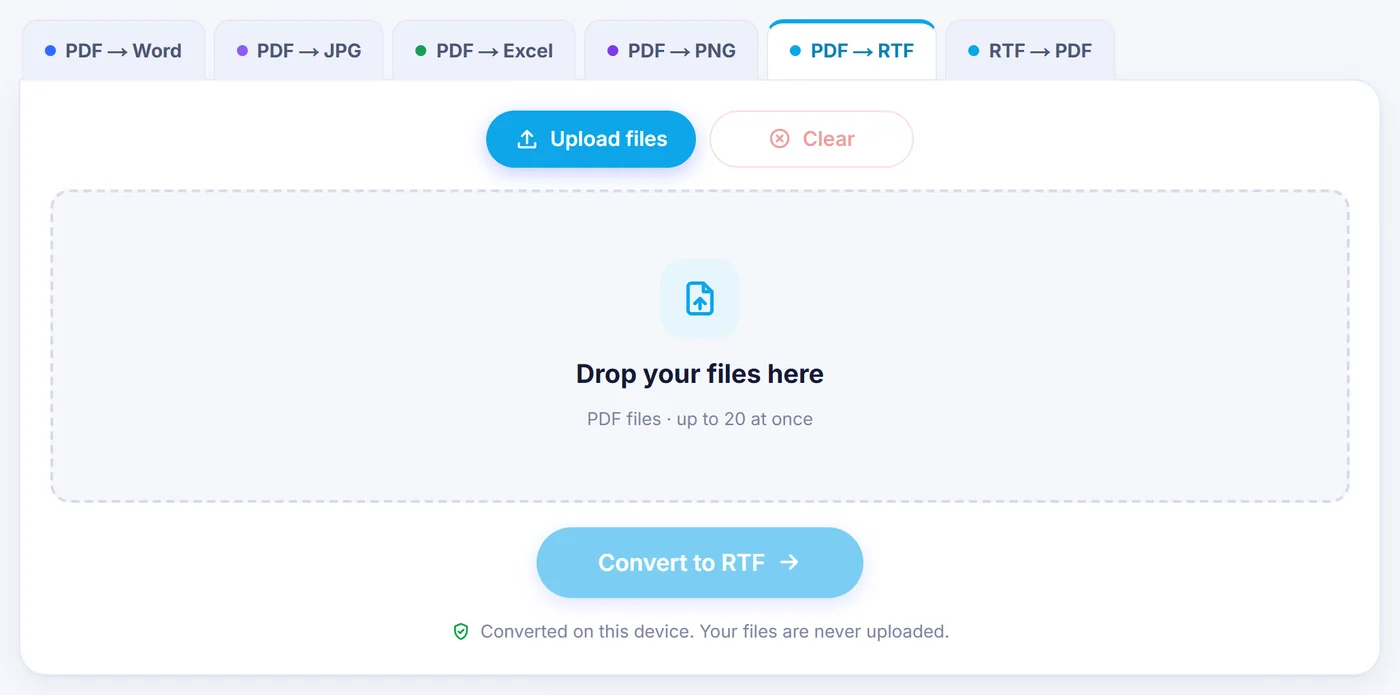
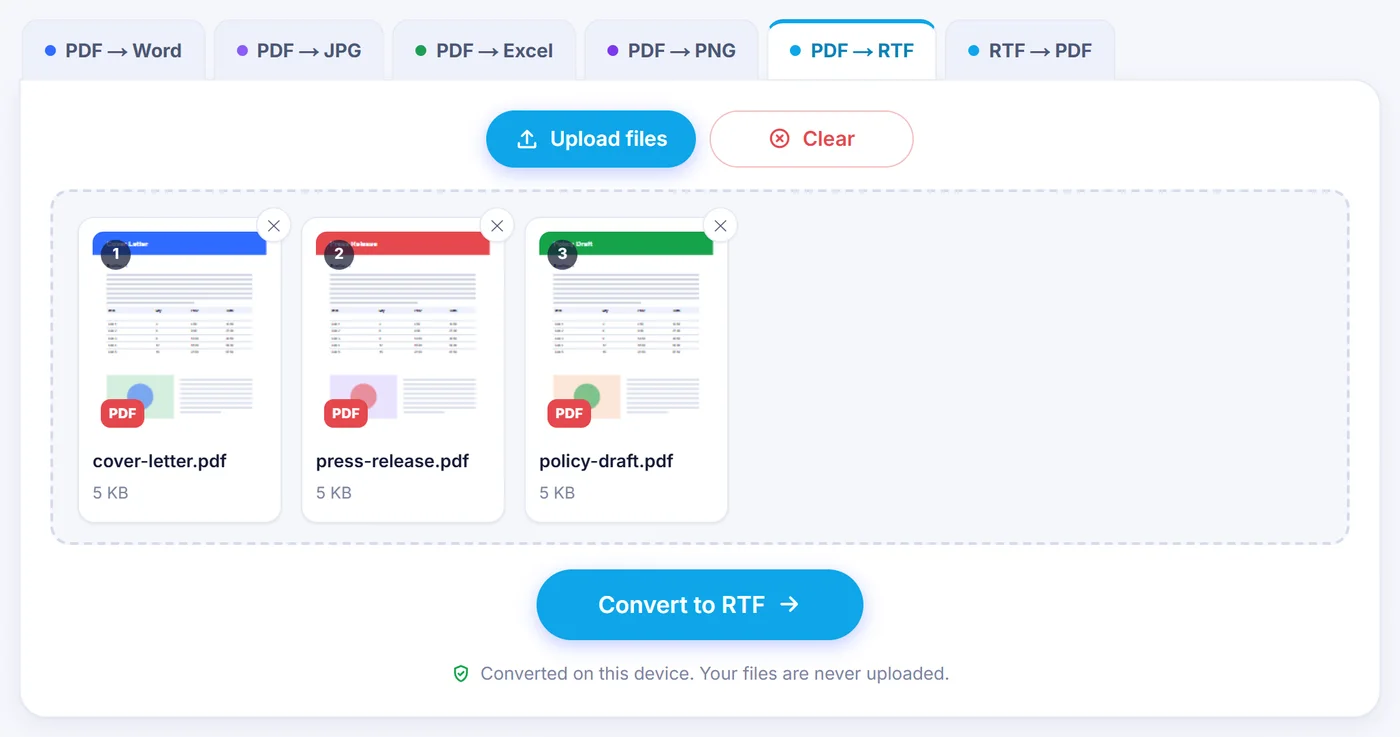
Drop in your PDF
Pick one PDF or a batch of up to 20. If a file is password-protected, you are asked for its password on your device first.
Check the preview
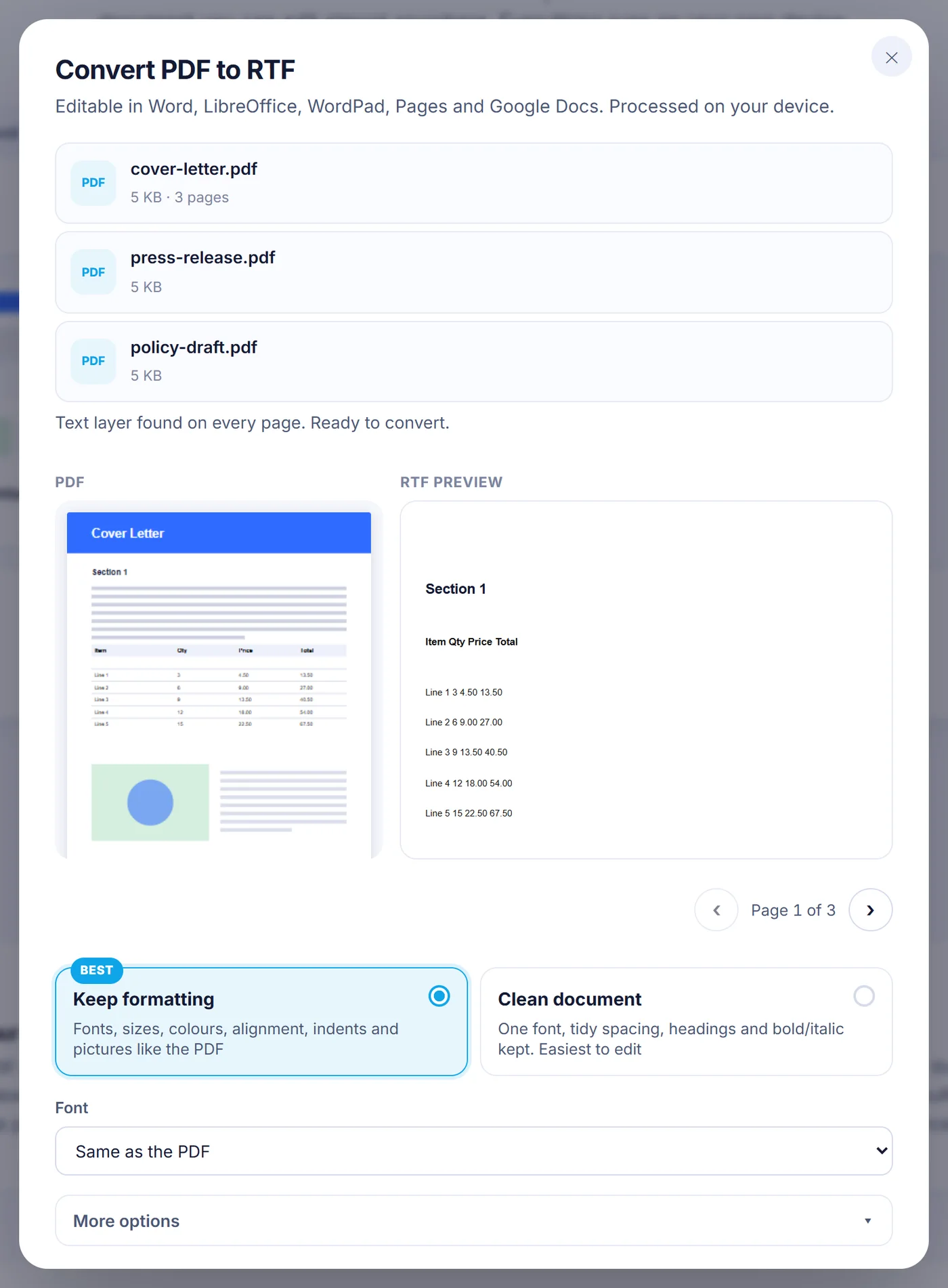
Flip through the pages, compare the original with the RTF preview and choose between keeping the layout or a clean document.
Save the .rtf
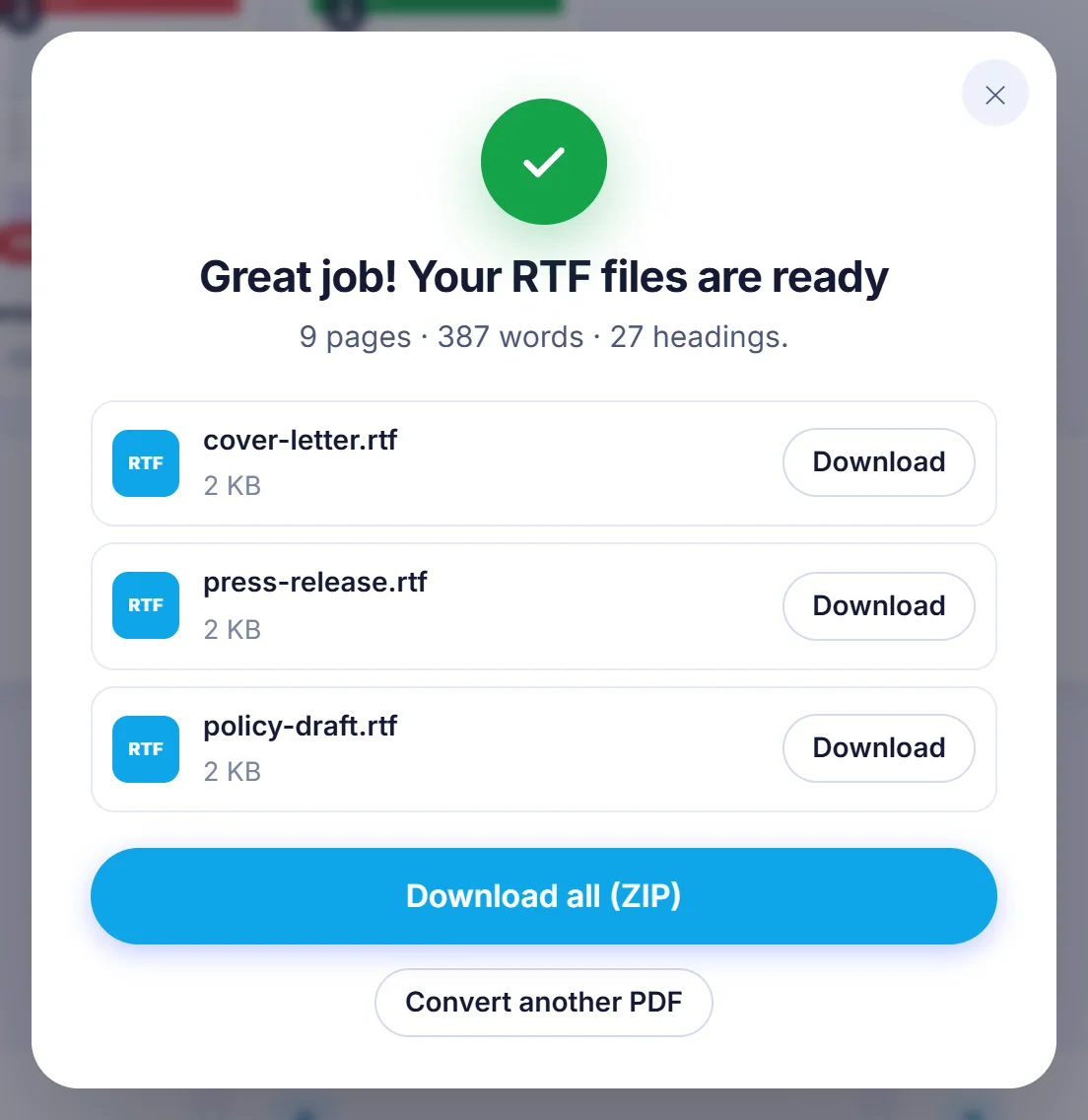
Press the button, wait for the progress bar and download the result, or grab every converted file at once as a ZIP.
Why pick RTF instead of DOCX?
Rich Text Format is an old, plain-text based document format, and that age is exactly its strength. An RTF file opens in Microsoft Word, LibreOffice Writer, Apple Pages, TextEdit, WordPad and Google Docs, old versions included. If you need to hand an editable copy of a PDF to someone whose software you do not know, or you feed documents into an older system that only imports RTF, a PDF to RTF conversion is the safe choice.
How the PDF to RTF conversion works here
A PDF stores letters at exact positions on a page; it has no idea what a paragraph is. The converter reads every piece of text with its font, size and colour, groups pieces that share a baseline into lines, and then decides where paragraphs start by looking at spacing, indents, bullets and sentence endings. It works out whether a paragraph is left aligned, centred, right aligned or justified, and it writes all of that as real RTF paragraphs instead of floating text boxes. The result reflows naturally when you type into it.
After you add a file, a settings window opens with a thumbnail of the PDF page next to a live preview of the RTF. You can step through pages to see how each one will turn out before you commit.
The two output styles
- Keep formatting (the default) carries over fonts, sizes, text colours, alignment, indents, line spacing and pictures, so the document looks close to the PDF.
- Clean document uses one font, tidy spacing and simple heading sizes, while keeping bold, italic and the heading structure. Text colours are dropped in this mode. Choose it when you plan to rewrite the text rather than reproduce the look.
Options worth knowing
- Pages: with a single PDF you can type a selection such as 1-3, 8 or 10- to convert only part of it.
- Font: keep the fonts named in the PDF, or replace them all with Calibri, Arial, Times New Roman, Georgia, Cambria, Verdana or Courier New. RTF stores font names, not the fonts themselves, so a font missing on the reader's computer is swapped for a similar one; common PDF fonts such as Helvetica are mapped to Arial for that reason.
- Detect headings: large or bold title lines become real heading styles, so the navigation pane and an automatic table of contents in Word work straight away.
- Keep page breaks: each PDF page starts on a new page. Turn it off and sentences that were cut by the end of a page are joined back together.
- Join hyphenated words, keep web links clickable, keep text colours and include pictures can each be switched on or off.
- Remove headers, footers and page numbers drops lines that repeat at the top or bottom of most pages, which saves a lot of manual deleting in long reports.
Your choices are remembered in this browser for the next visit, except the page selection.
What comes through, and what may change
Body text, bold and italic, superscript and subscript, text colours, web and email links and pictures are all written into the RTF. Bulleted and numbered items become separate paragraphs that keep their bullet or number as text, not as an automatic list. Photos are embedded as JPEG; images with transparency are kept as PNG. Very large images are scaled down to at most 1800 pixels on their longest side to keep the file manageable, and tiny fragments such as rules or dots are left out. Accented letters and non-Latin scripts are stored as Unicode, and right-to-left paragraphs are marked as such.
Tables are not rebuilt as editable table grids: cells come through as lines of text with tab spacing between columns. Multi-column magazine layouts become a single flowing column. Text drawn as vector outlines (common in logos and some exported designs) is not real text: a page made only of such shapes is treated like a scanned page, while an outlined logo next to normal text is simply not carried over. Decorative backgrounds that cover the whole page behind real text are left out on purpose.
Scanned PDFs and OCR
When you open a file, the tool checks whether its pages contain a text layer (the first 60 pages of the first PDF) and tells you how many do not. For those pages you can pick one of three behaviours:
- Recognise text (OCR): the page is rendered as an image and read by an OCR engine running on your device. The language is pre-selected from your browser settings, and you can change it to any of 38, including Romanian, German, Russian, Greek, Arabic, Hebrew, Chinese, Japanese and Korean, and English is always added as a second language. The accuracy setting renders at 150, 220 or 300 dpi; use the highest for small print.
- Keep as picture: the whole page is placed in the RTF as an image, useful for forms or drawings you only need to keep alongside the text.
- Skip: those pages are left out of the result.
The first time you run OCR in a language, its data file (roughly 2 to 15 MB) is downloaded once and then cached by the browser. Your PDF itself is still never sent anywhere.
Converting several PDFs at once
You can add up to 20 PDFs in one go. Every file is converted with the same settings, one after another, and the progress bar shows which file and page is being processed. Each result is named after its PDF, for example contract.pdf becomes contract.rtf; if two files share a name, the second gets a number in brackets. You can download files one by one or all together in a ZIP archive. If a protected file is in the batch, you are asked for its password when its turn comes; a file you skip, or one with no readable text, is listed as not converted while the others finish. The page selection only appears when you convert a single PDF: in a batch, every page is converted.
Troubleshooting
The result is empty or says no text was found. The PDF is probably a scan and the scanned-page option was set to Skip. Choose OCR and convert again.
OCR text has errors. Make sure the right language is selected and try the high accuracy setting. Crooked or blurry scans always give weaker results.
The phone stops halfway. Very long documents need a lot of memory. Convert one PDF at a time with a page range, or use a computer for big files.
The file will not open. If the tool reports a damaged PDF, open it in any PDF viewer, print or save it as a new PDF, and try that copy.
Private by design
The converter is a script that runs inside the page you are looking at. Your PDF is read into the browser's memory, turned into RTF there, and handed back as a download. No copy reaches a server, so there is nothing stored to delete later; close the tab and it is gone. That suits contracts, medical letters and internal reports.
Frequently asked questions
How do I convert a PDF to RTF for free?
Add the PDF on this page, pick Keep formatting or Clean document, and press Convert to RTF. There is no account, no watermark and no limit on how often you use it.
Can WordPad or TextEdit open the RTF file?
Yes. The output is standard RTF, so WordPad, TextEdit, Word, LibreOffice, Pages and Google Docs all open it. Simpler editors may ignore features such as heading styles or embedded pictures.
Will it work on a scanned PDF with no selectable text?
Yes. Pages without a text layer can be read with OCR in your browser; choose the document language first for the best accuracy. You can also keep those pages as pictures or skip them.
Does it keep images and tables from the PDF?
Pictures are embedded in the RTF. Tables arrive as text lines with tab spacing, not as editable table grids, so you may need to tidy them in your editor.
Can I convert only some pages of a PDF to RTF?
Yes, when you convert one PDF you can enter pages like 2-5 or 1, 4, 9- in the Pages field. In a batch, every page of every file is converted.
Is it safe to convert a confidential PDF here?
The conversion happens entirely in your browser and the PDF is never sent to a server. Even a password you type is used only on your device to open the file.